

In this page
This post is also available in: Español
In Jenkins, well-designed parameters can simplify even the most complex deployments. In this article, we will see how to build dynamic parameters with a shared Jenkins library, how to query GitHub branches, and how to relate parameters to one another. The examples use a declarative Jenkinsfile, but they can also be adapted to scripted pipelines.
Before getting started, you need:
A Jenkins instance with permissions to configure the job and run pipelines.
The Pipeline: Groovy Libraries plugin to load shared libraries.
The Active Choices plugin if you plan to use reactive parameters such as
CascadeChoiceParameter.Credentials stored in Jenkins to access private repositories.
A Git repository with the structure expected by the shared library.
How to Import a Dynamic Library into Your Pipeline
At one point, I had to create a personal repository to develop Groovy libraries because I did not have access to either the Jenkins configuration or the repository containing the original libraries. That is why I used this script.
A shared library can be organized, for example, as follows:
jenkins_poc/
├── vars/
│ └── testName.groovy
├── src/
│ └── com/ejemplo/jenkins/
└── resources/
Files placed in vars/ expose global pipeline steps. For larger projects, reusable logic should live in src/, leaving only a simple interface for Jenkinsfiles in vars/.
In production, it is preferable to pin a specific tag or version of the library instead of always using master or main. This way, a change in the library does not accidentally modify all pipelines.
library identifier: "jenkins_poc@main", retriever: modernSCM([
$class: 'GitSCMSource',
remote: "https://github.com/${user}/jenkins_poc.git",
credentialsId: credentialsId
])
Once we have resolved the library issue, it is time to put it into action in your pipeline. You can invoke its functions in a simple and practical way. This will allow you to make the most of the library's capabilities to optimize your processes.
properties([
parameters([
choice (
name: 'name',
choices: [testName("Dynamic parameter")],
description: 'name'
),
])
])
In this example, testName returns an option for the dropdown. If the function returns multiple lines, Jenkins interprets them as multiple parameter options:
// vars/environmentOptions.groovy
def call() {
return ['dev', 'stag', 'prod']
}
And the parameter can consume them as follows:
properties([
parameters([
choice(
name: 'ENVIRONMENT',
choices: environmentOptions(),
description: 'Selecciona el entorno de destino'
)
])
])
It is advisable to use descriptive and consistent parameter names, such as ENVIRONMENT or RELEASE_BUILD, so that the pipeline is easy to read and maintain.
In this case, the function is very simple.
# vars/testName.groovy
def call(String name) {
return name
}
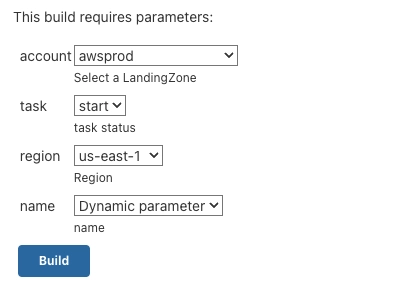
And this is what our new dynamic parameter would look like

Listing Repository Branches on GitHub
If you need a project's branches to come directly from its GitHub repository, you can integrate this code.
import com.cloudbees.plugins.credentials.CredentialsProvider;
import com.cloudbees.plugins.credentials.common.StandardUsernamePasswordCredentials;
import jenkins.model.Jenkins;
def credentials = com.cloudbees.plugins.credentials.CredentialsProvider.lookupCredentials(
com.cloudbees.plugins.credentials.Credentials.class,
Jenkins.instance,
null,
null
);
def user = credentials.findResult { it.id == credentials_id ? it : null }
try{
def gettags = ("git ls-remote -t -h https://${user.username}:${user.password}@github.com/${user}/${project}.git").execute()
def branchesNoDefault = gettags.text.readLines().collect {
it.split()[1].replaceAll('refs/heads/', '').replaceAll('refs/tags/', '').replaceAll("\\\\^\\\\{\\\\}", '')
}
branches = branchesNoDefault.collect {
if (it == defaultBranch){
return "${defaultBranch}:selected"
}else {
return it
}
}
return branches
} catch(all) {
return [all.getMessage()]
}
This approach is useful, but it has two important considerations. First, the git ls-remote command must be executed with a secure credential, rather than with credentials interpolated directly into a URL, because they could end up exposed in logs or in the process list. Second, the user running the pipeline needs permission to read the credentials and access the repository.
Whenever possible, use the Git plugin and withCredentials, or an SSH credential managed by Jenkins. Also validate the repository names and branches received before using them in subsequent commands. If the repository contains many branches, consider returning only the allowed branches to prevent the form from becoming slow.
Using the Last Successful Build Number from Another Pipeline
If your Docker builds are in a different pipeline, you can use the RunParameterDefinition parameter and add it to your pipeline with this code.
properties([
parameters([
choice (
name: 'name',
choices: [testName("Dynamic parameter")],
description: 'name'
),
[
$class: 'RunParameterDefinition',
filter: 'SUCCESSFUL',
name: 'RELEASE_BUILD',
projectName: build_job
]
])
])
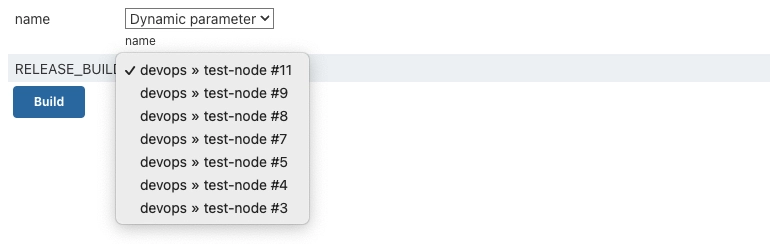
This is what our pipeline would look like
The RunParameterDefinition parameter allows you to select an existing run from another job. It is especially useful when a deployment pipeline needs to consume an artifact generated by a build pipeline.
In the pipeline, you can retrieve the selected number and use it to download the corresponding artifact:
pipeline {
agent any
stages {
stage('Mostrar compilación seleccionada') {
steps {
echo "Compilación elegida: ${params.RELEASE_BUILD}"
}
}
}
}
Selecting a successful build is safer than choosing only the most recent number: it prevents deploying a failed or incomplete run. Even so, it is advisable to verify that the artifact exists and corresponds to the target branch and environment.
Logic and Dependencies on Other Parameters
We can also add logic that depends on what is selected in other parameters; for example, if you need to identify which environment was selected and, based on that, apply specific behavior.
First, we need to add the parameter for selecting the environment.
properties([
parameters([
choice (
name: 'name',
choices: [testName("Dynamic parameter")],
description: 'name'
),
[
$class: 'RunParameterDefinition',
filter: 'SUCCESSFUL',
name: 'RELEASE_BUILD',
projectName: build_job
],
[
$class: 'CascadeChoiceParameter',
choiceType: 'PT_SINGLE_SELECT',
description: 'Select the environment from the dropdown list',
filterLength: 1,
filterable: false,
name: 'environment',
script: [
$class: 'GroovyScript',
fallbackScript: [
classpath: [],
sandbox: false,
script:
"return['CloudCould not get the envs']"
],
script: [
classpath: [],
sandbox: false,
script:
'''return["dev", "stag", "prod"]'''
]
]
],
])
])
In a real-world case, the second parameter may depend on the selected environment. For example, we can display different accounts or regions for each environment. With Active Choices, the reactive script receives the values of the parameters it depends on:
[
$class: 'CascadeChoiceParameter',
choiceType: 'PT_SINGLE_SELECT',
name: 'REGION',
referencedParameters: 'environment',
script: [
$class: 'GroovyScript',
fallbackScript: [
classpath: [],
sandbox: true,
script: "return ['No se pudieron cargar las regiones']"
],
script: [
classpath: [],
sandbox: true,
script: '''
if (environment == 'prod') {
return ['eu-west-1', 'us-east-1']
}
return ['eu-west-1']
'''
]
]
]
referencedParameters is the part that establishes the dependency. Every time the user changes environment, Jenkins reevaluates the REGION script.
Complete Example of Use in a Stage
After defining the parameters, the pipeline can use them to select the behavior for each run:
pipeline {
agent any
stages {
stage('Validar parámetros') {
steps {
script {
if (params.ENVIRONMENT == 'prod' && !params.RELEASE_BUILD) {
error('La producción requiere una compilación seleccionada')
}
}
}
}
stage('Desplegar') {
steps {
echo "Desplegando ${params.RELEASE_BUILD} en ${params.ENVIRONMENT}"
}
}
}
}
Validation within the pipeline is still necessary even if the form limits the available options. Parameters may be empty, modified through an API call, or supplied by an automated job.
Best Practices and Common Issues
Avoid secrets in code: store tokens, passwords, and SSH keys in Manage Jenkins → Credentials.
Limit disabled sandbox use: scripts outside the sandbox require administrative approval. Enable the sandbox whenever possible.
Control response time: do not make several network calls every time the form is opened. Use caching or a limited list of options.
Validate values in the pipeline: a dynamic parameter improves the user experience, but it does not replace security checks.
Pin versions: use tags or commits for shared libraries and critical plugins.
Log useful errors: return understandable messages when GitHub is unavailable or the credential lacks permissions.
If a parameter does not appear, check that the job has run at least once and that the required plugin is installed. If it appears empty, check the script's result, the credential's permissions, and the Jenkins logs. For reactive parameters, also verify that referencedParameters exactly matches the name of the parameter they depend on.
In summary, dynamic Jenkins pipelines with Groovy are a powerful tool that can revolutionize your deployments. By understanding the importance of parameters and how they can influence the efficiency of your pipelines, you are on your way to achieving simpler and more effective deployments.
Keep reading
Related articles
AWS, Azure, GCP & OCI Weekly Cloud Updates — September 15–20, 2026
Explore this week's AWS, Azure, Google Cloud and OCI updates, including Kubernetes, database recovery, Prometheus compatibility, cloud security and networking.
Kubernetes Troubleshooting: Health Checks, Readiness, Liveness y Startup Probes
Learn how to troubleshoot Kubernetes readiness, liveness, and startup probes, including timeouts, restart loops, health checks, and cascading failures.
Kubernetes Troubleshooting: Networking, Services, DNS, NetworkPolicy, Ingress y CNI
Learn how to troubleshoot Kubernetes networking from Pods and Services through EndpointSlices, DNS, NetworkPolicy, Ingress, Gateway API, LoadBalancers, and CNI.